Harper College

Setting up Multi-Factor Authentication with Microsoft

Logging in to the MyHarper Student Portal now uses Microsoft to sign in. Signing in to MyHarper for the first time will require you to set up multi-factor authentication with Microsoft.

Important: Microsoft will retire the Phone and Alternate phone multi-factor authentication methods on February 1, 2027. After this date, phone calls and text messages (SMS) will no longer be supported for multi-factor authentication. Harper College recommends using the Microsoft Authenticator app for secure sign-in verification.
Signing in to MyHarper Portal

  1. Navigate to the MyHarper Portal
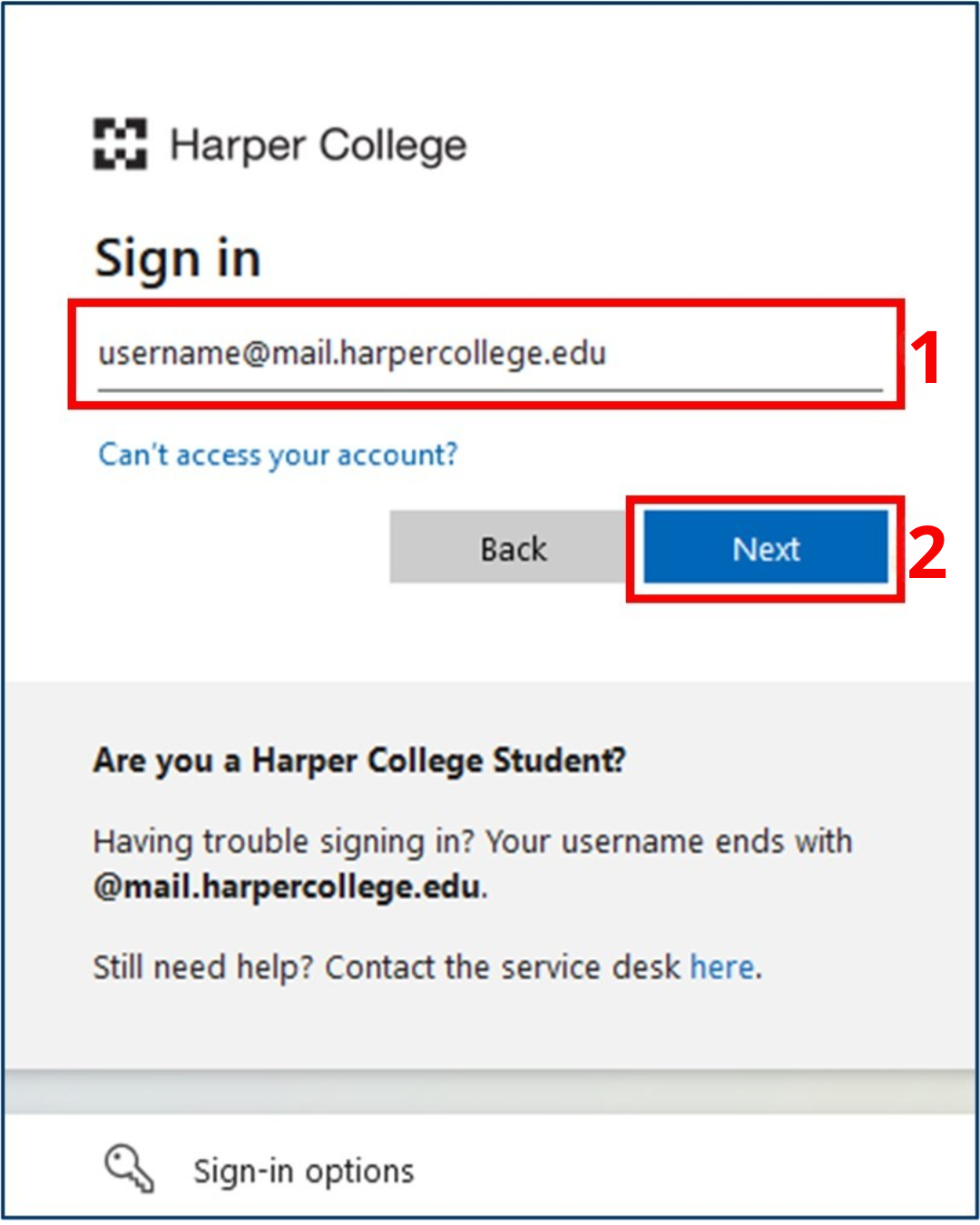
  2. Enter your Harper College email address in the following window (Figure 1-1). Your email address is your username followed by @mail.harpercollege.edu
  3. Click Next (Figure 1-2).
    Setup Authentication 1-2
    Figure 1: MyHarper Portal - sign in page
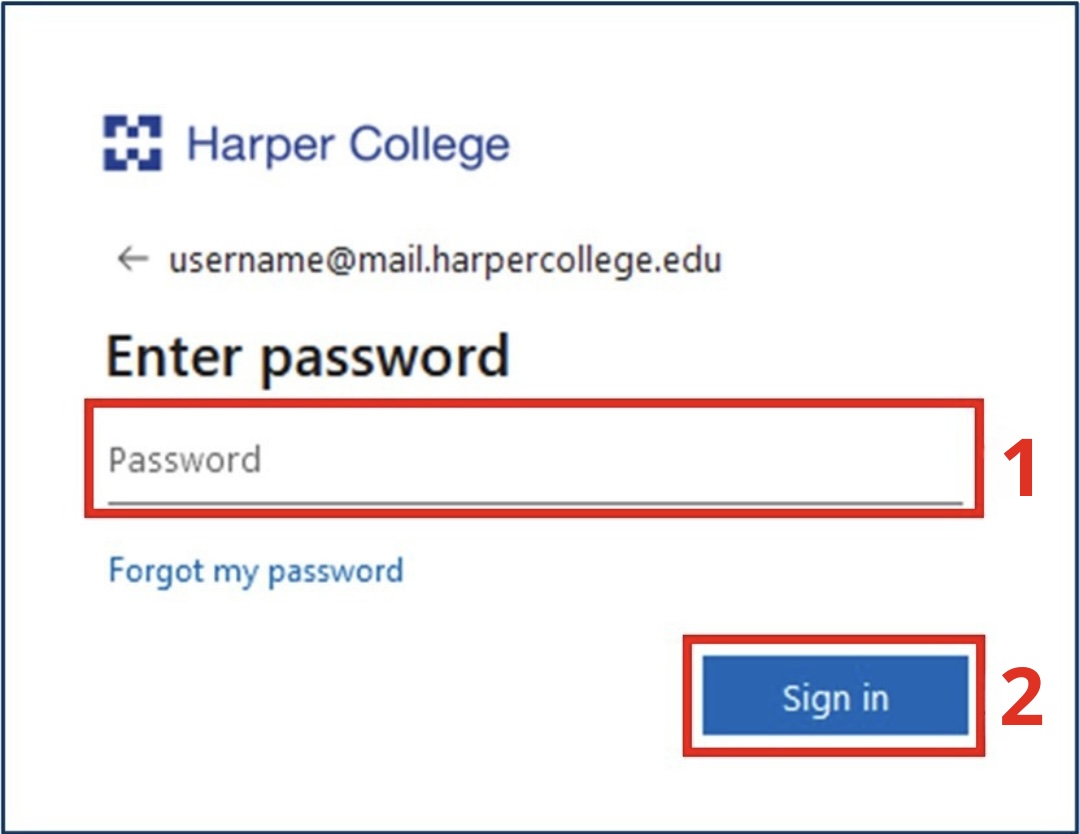
  4. Enter the password for your Harper College email (Figure 2-1). If you forgot your password or did not set one up, click Forgot my password or navigate to Password Reset and follow the steps there.
  5. Click Sign in (Figure 2-2).
    2_sign_in2edit
    Figure 2: MyHarper Portal - Enter password page
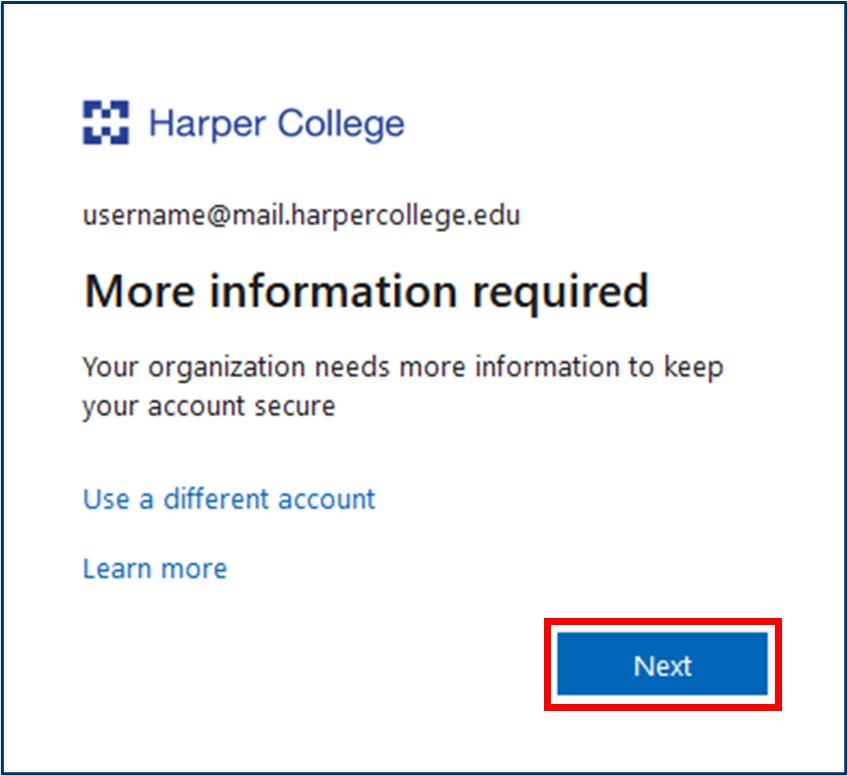
  6. Click Next on the More information required page (Figure 3). From here, you will have options to set up your multi-factor authentication with the Microsoft Authenticator app and/or your mobile device.
    more information required
    Figure 3: More information required

Setting up Microsoft Authenticator

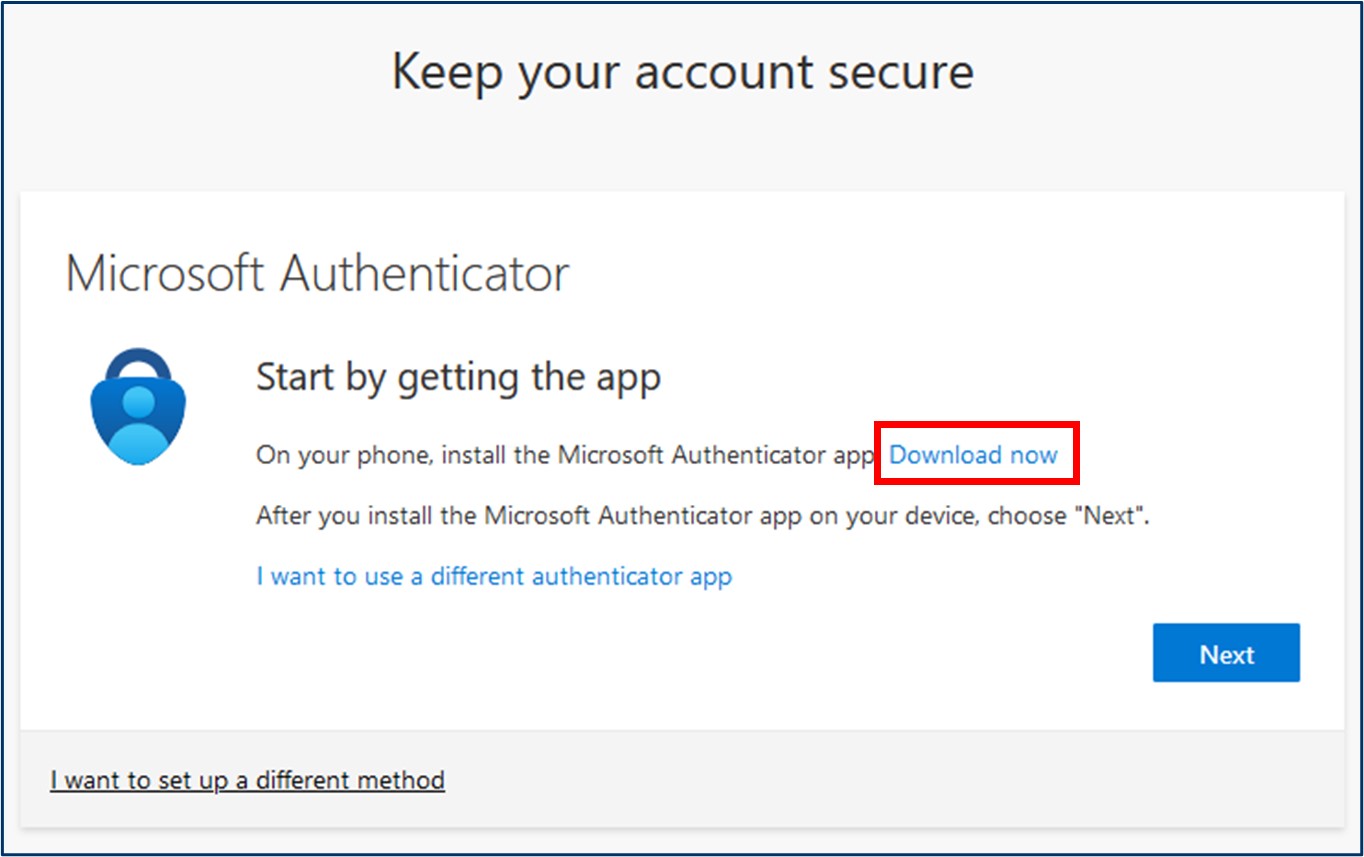
  1. You will be prompted to set up multi-factor authentication. Click Download now to open QR codes to download the Microsoft Authenticator app (Figure 4).
    microsoft authenticator - download
    Figure 4: Microsoft Authenticator - Download now link
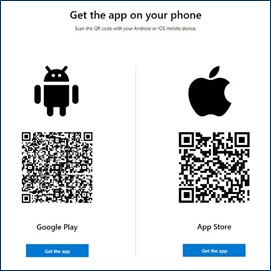
  2. A new tab will open with Get the app on your phone. Scan the QR code with your Android or iOS device’s camera (Figure 5).
    Figure 5: QR code for Microsoft Authenticator download
    Figure 5: QR code for Microsoft Authenticator download
  3. After installing the Microsoft Authenticator app on your mobile device, go back to the previous browser tab seen in Figure 4.
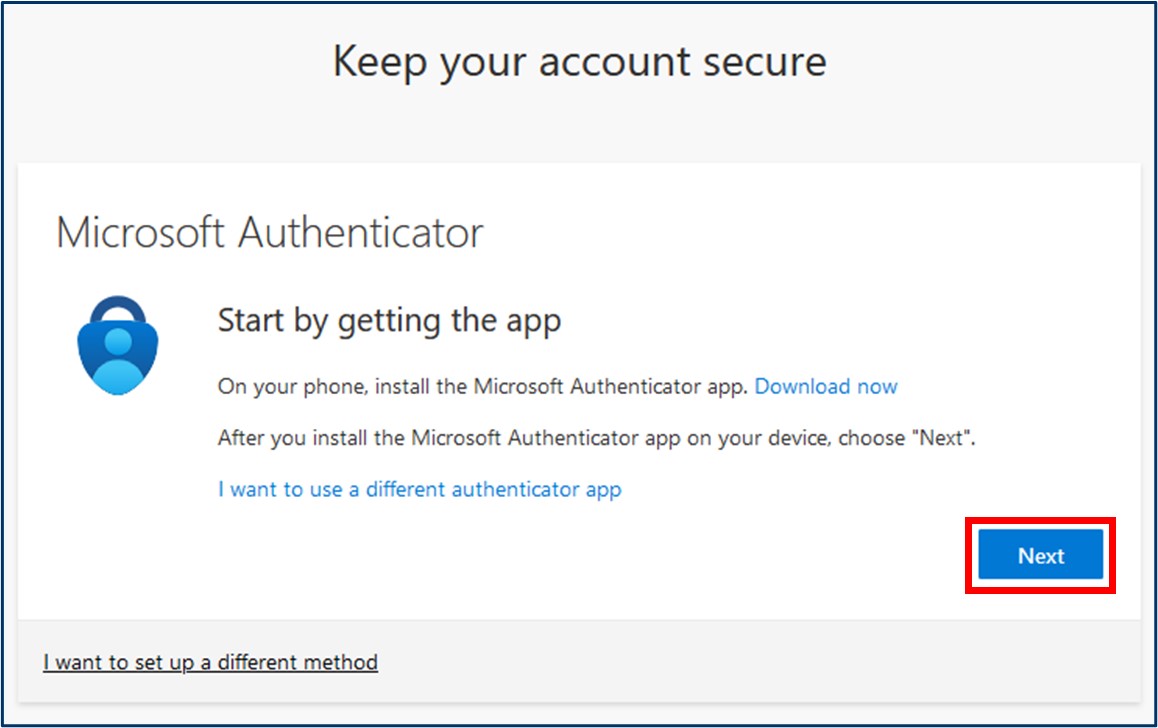
  4. Click Next in the Set up your account window (Figure 6).
    Figure 6: Microsoft Authenticator – Continuing set up
    Figure 6: Microsoft Authenticator – Continuing set up
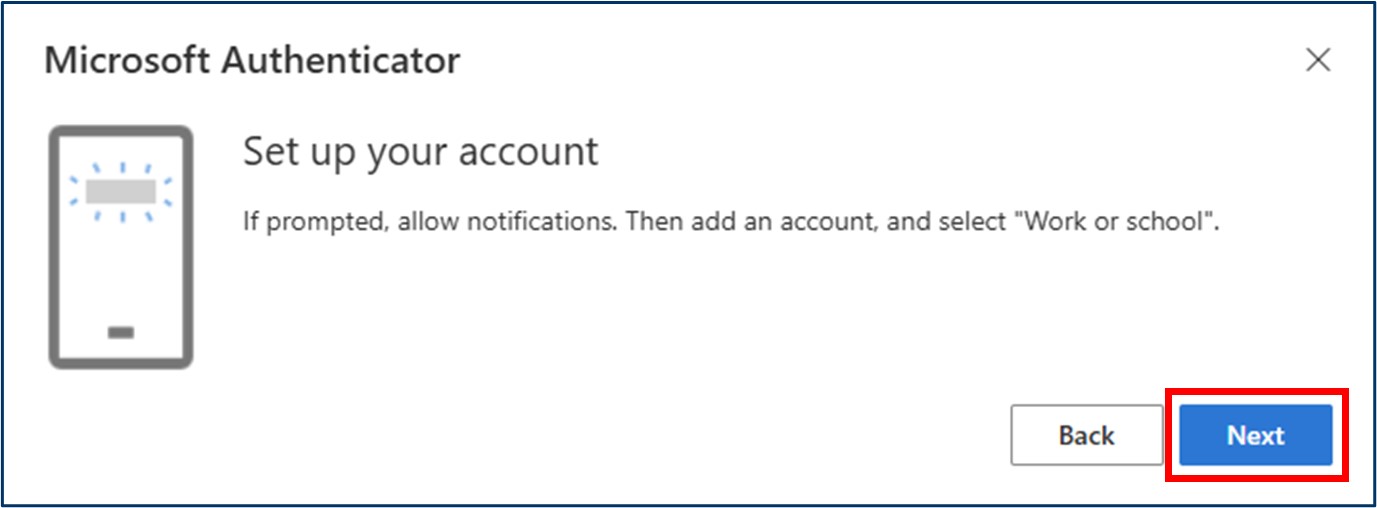
  5. Click Next on the Set up your account screen (Figure 7).
    Figure 7: Set up your account
    Figure 7: Set up your account
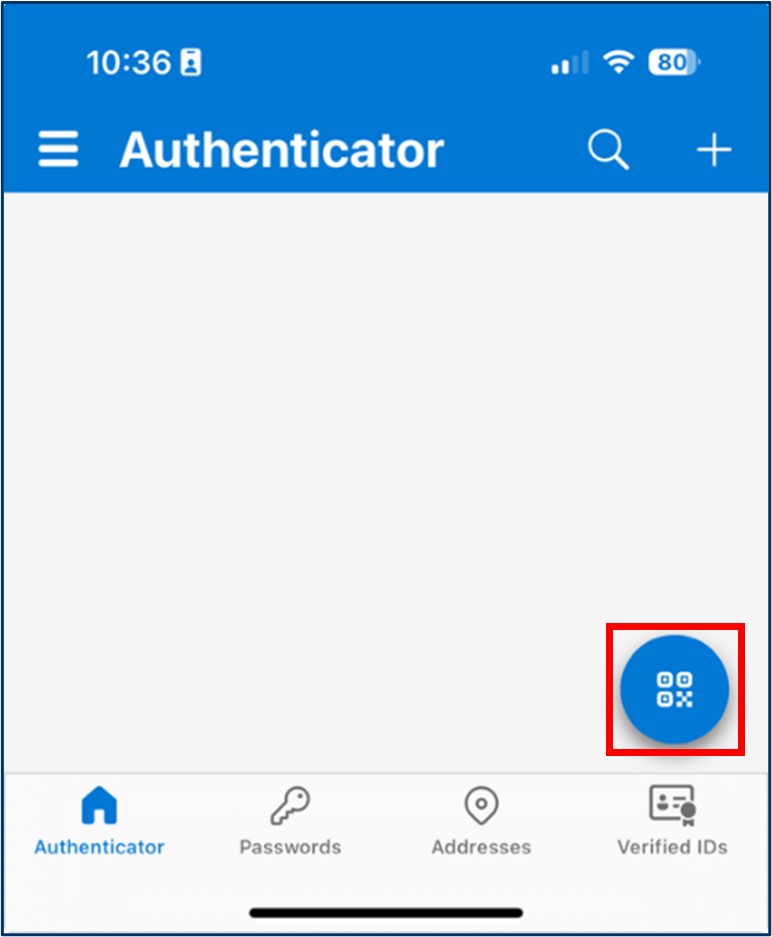
  6. On your mobile device, launch Microsoft Authenticator and select Scan QR code (Figure 8).
    Figure 8: Microsoft Authenticator app - Scan QR code
    Figure 8: Microsoft Authenticator app - Scan QR code
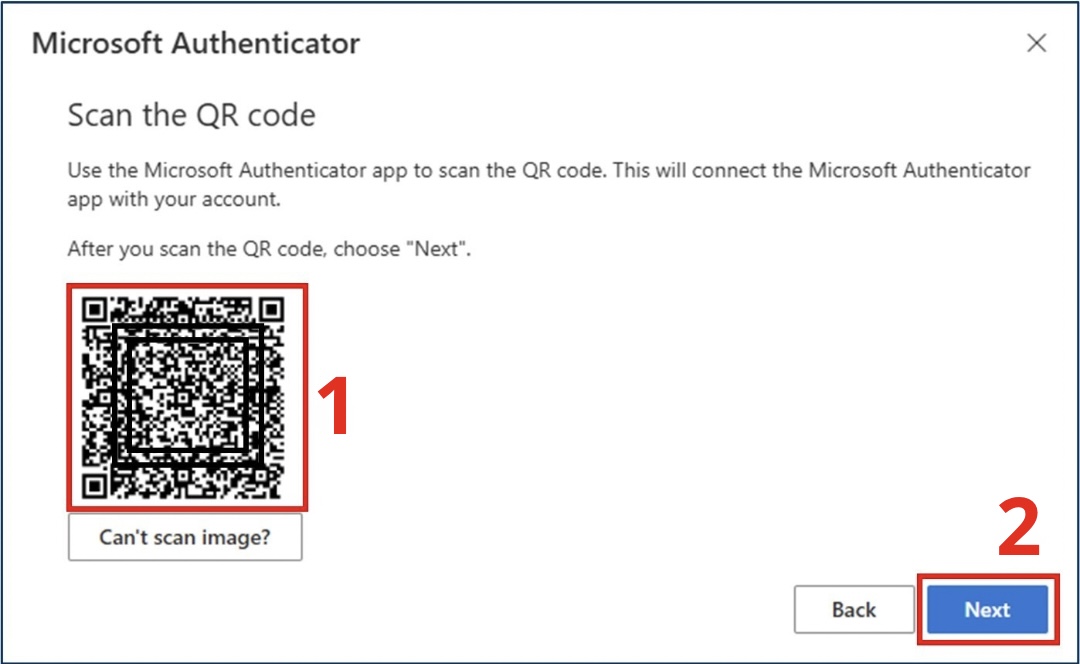
  7. Use your mobile device to scan the QR code on the computer screen to link your Microsoft Authenticator app to your Harper College account (Figure 9-1).
  8. Click Next after scanning the QR code (Figure 9-2).
    Figure 9: Scan QR code with phone
    Figure 9: Scan QR code with phone
  9. The Microsoft Authenticator app will test if it is connected with your Harper College email. You will receive a notification from the app on your mobile device to approve the sign in.
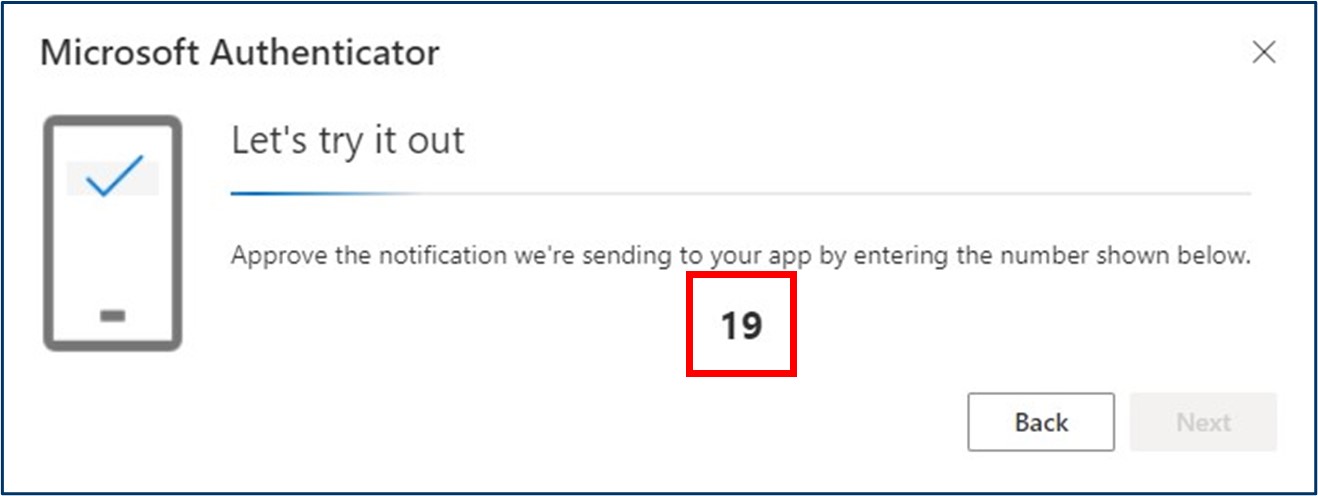
  10. A number will appear on the browser (Figure 10).
    Figure 10: Number on browser
    Figure 10: Number on browser
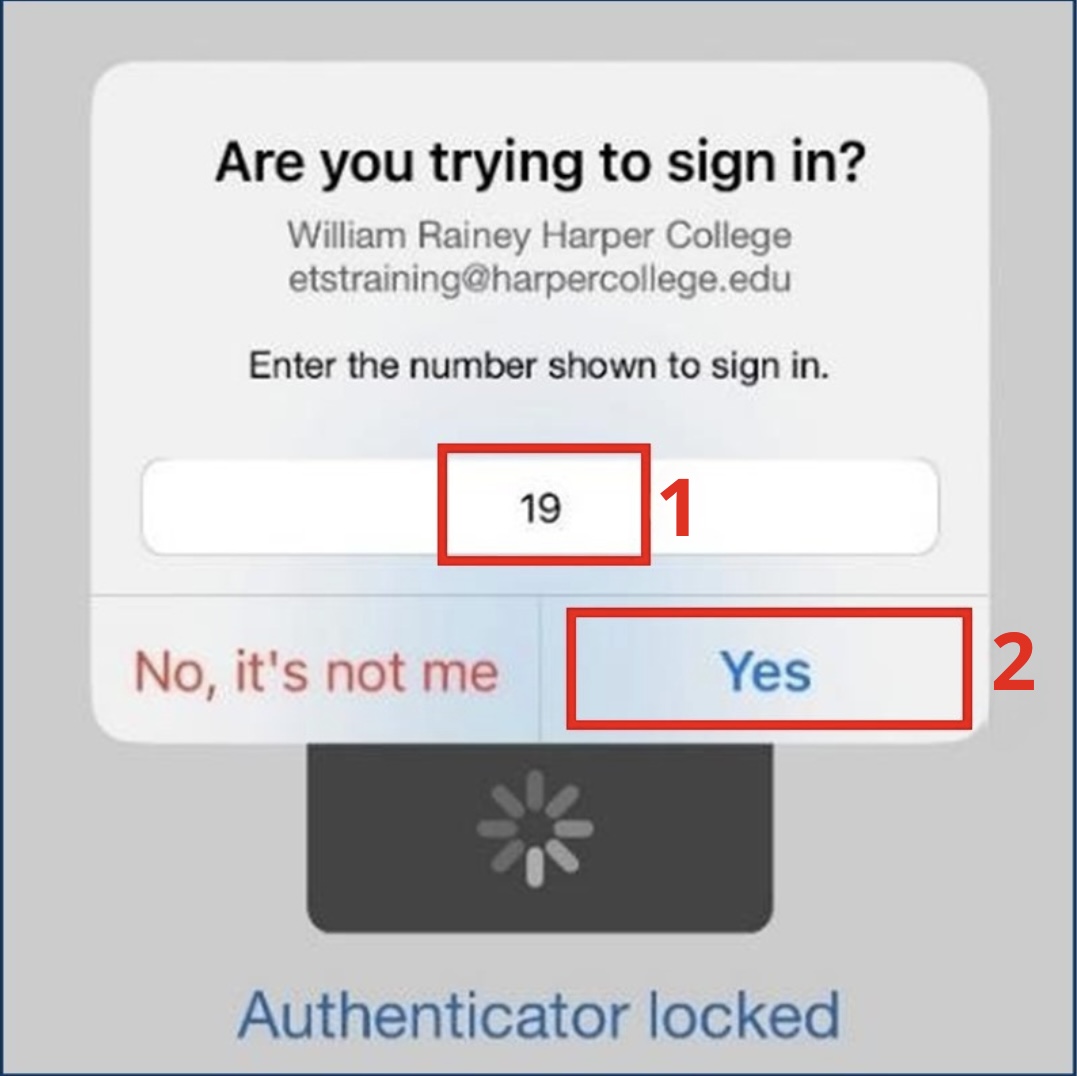
  11. Enter the number from the previous step into the Microsoft Authenticator app on your mobile device (Figure 11-1).
  12. Tap Yes on your mobile device to verify you can use the Microsoft Authenticator app (Figure 11-2).
    Figure 11: Entering number seen on computer into app
    Figure 11: Entering number seen on computer into app
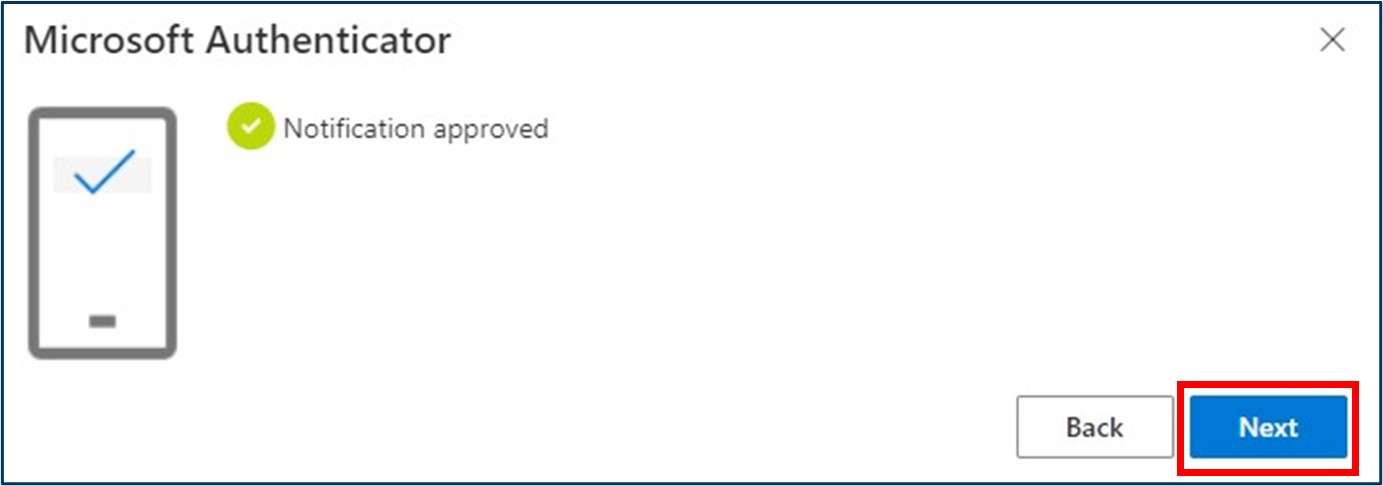
  13. Once successful, Notification approved will show. Click Next to access the MyHarper Portal (Figure 12).
    Figure 12: Microsoft Authenticator confirmation
    Figure 12: Microsoft Authenticator confirmation

Setting up Additional Multi-factor Authentication Methods

To set up additional multi-factor authentication for added security, follow these steps:
  1. Navigate to Microsoft Account Security Info. You may also adjust multi-factor authentication preferences on this page.
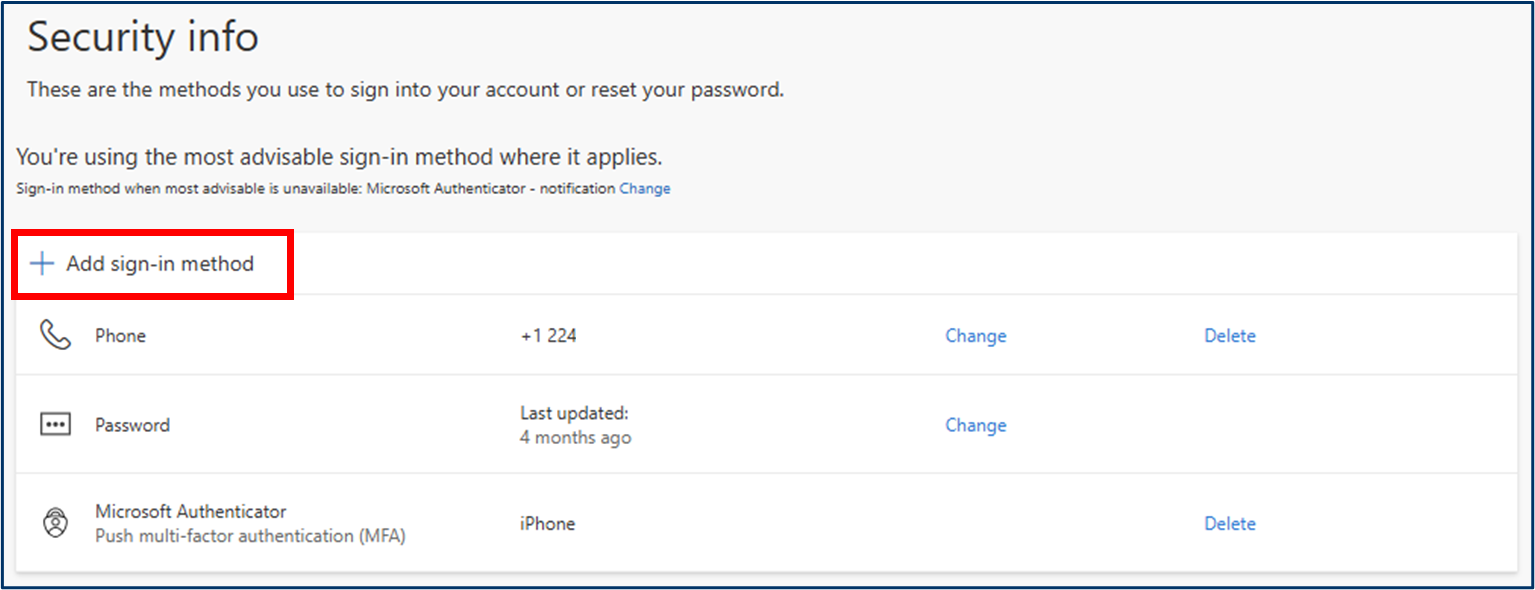
  2. Click Add sign-in method (Figure 13).
    Figure 18: Security info - Add sign-in method
    Figure 13: Security info - Add sign-in method
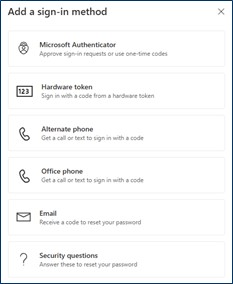
  3. Select the multi-factor authentication you want to add and follow the instructions on screen (Figure 14).
    Figure 19: Add a sign-in method
    Figure 14: Add a sign-in method
  4. If you have any questions or issues with your login, please contact the Student Service Desk at 847.925.6866 or studentsd@harpercollege.edu.

Last Updated: 9/8/26