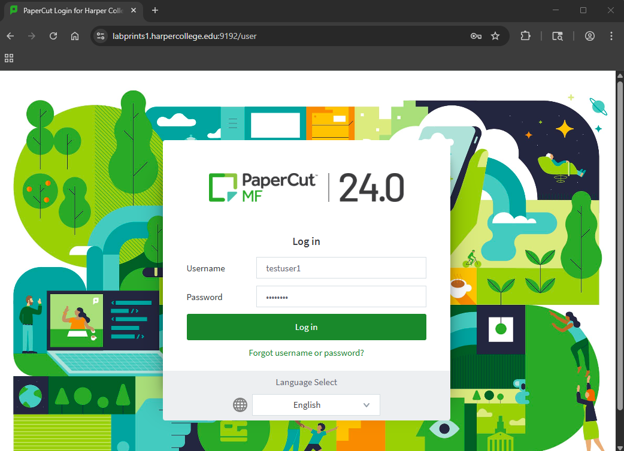
Navigate to the Harper College Print Portal and login with your Harper Student Account. DO NOT include the email address (@mail.harpercollege.edu)
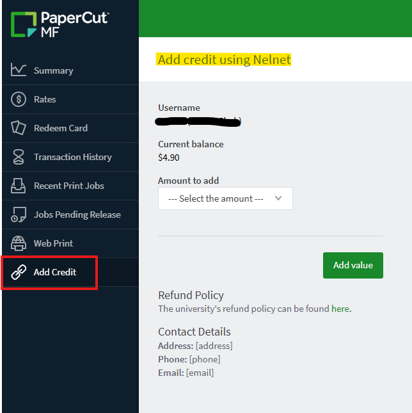
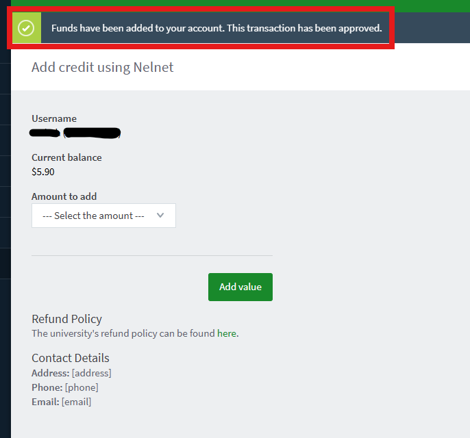
Once logged into the portal, click on the “Add Credit” link. You should then see a page named “Add Credit using Nelnet”.
Click on the “Amount to add” drop box and choose from the available amounts. PLEASE NOTE: As this time the maximum credit amount allowed is $5.00.
Click on the “Add value” button.You will now be redirected to the Nelnet payment site.
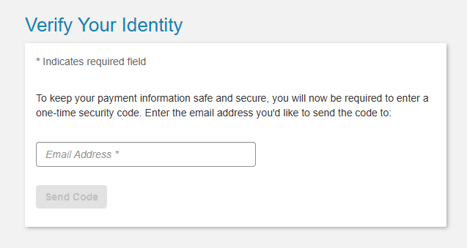
You will need to validateyour account. Enter your email address and click “Send Code”.
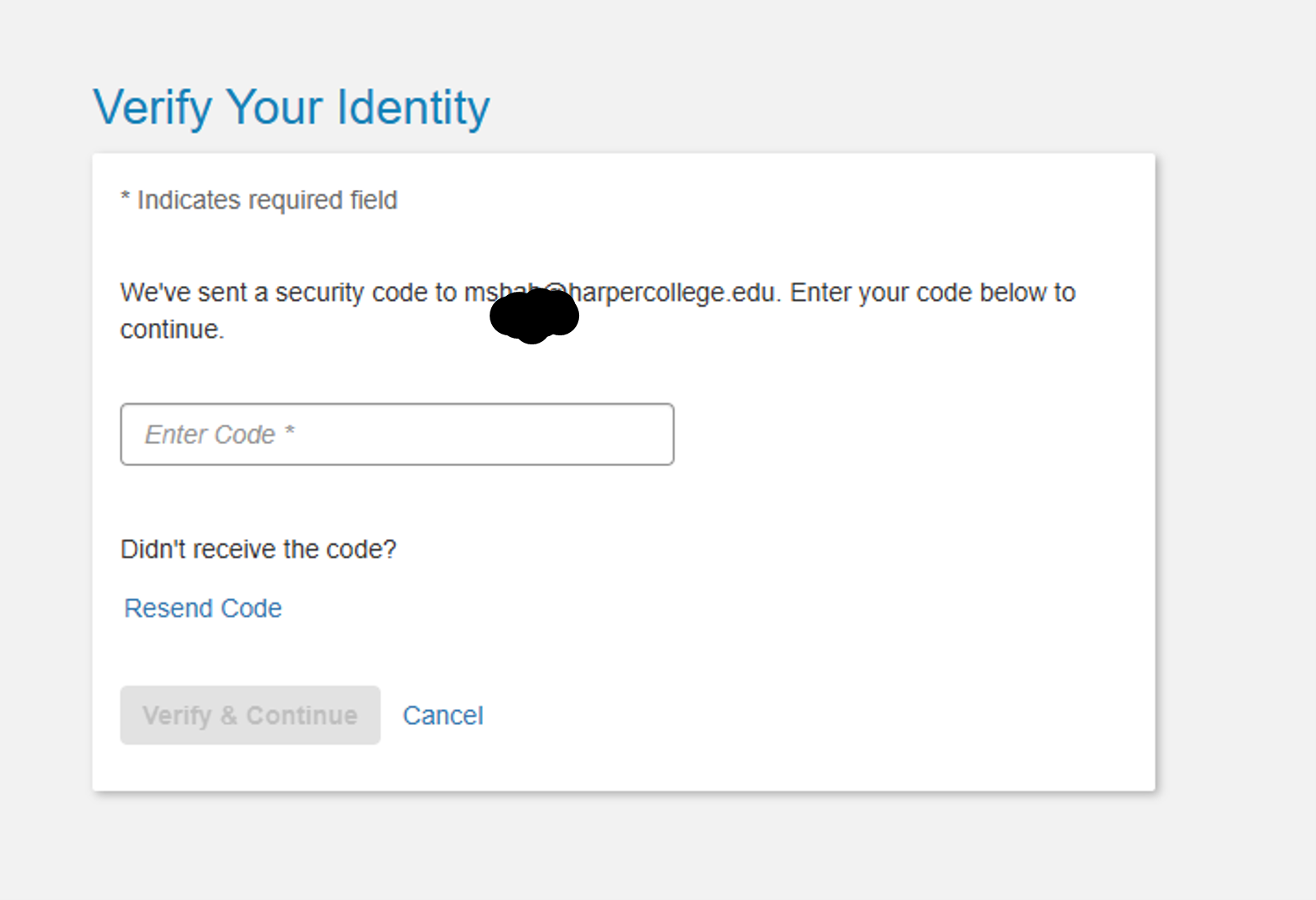
Enter the Security Code received from your email and click on “Verify & Continue”
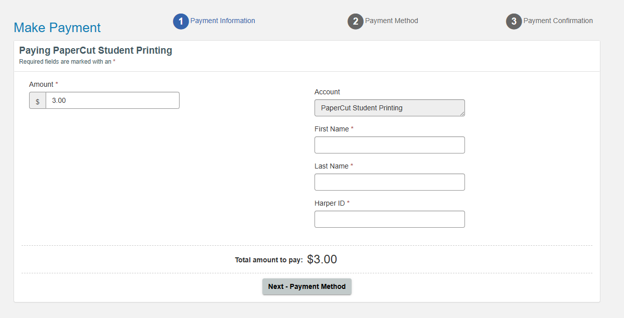
At the “Make Payment Screen”, enter in the below information and then Click on “Next
- Payment Method”
Amount in dollars not greater than $5.00 as displayed in drop down
Your First and Last Name
Your Harper ID number (H0xxxxxxx)
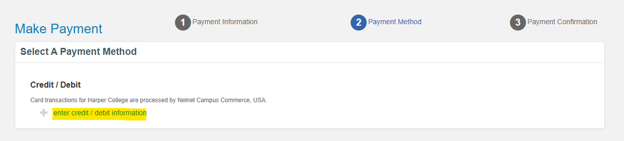
Click on the “enter credit / debit information” link
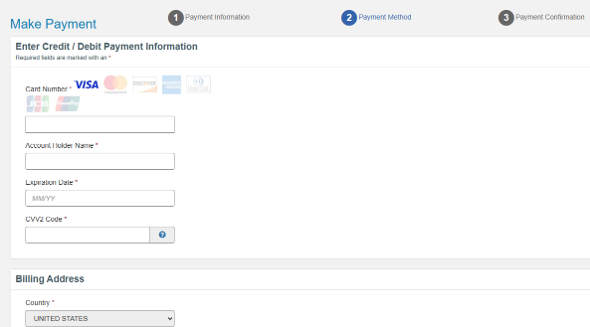
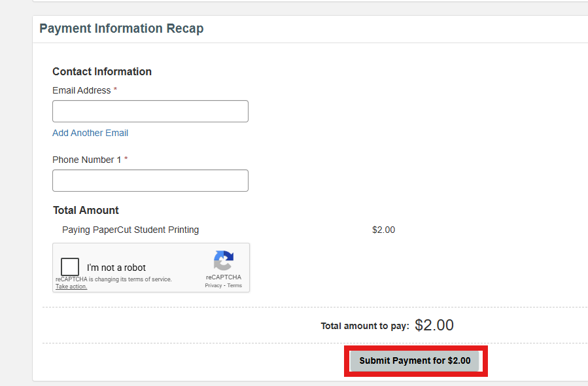
Enter your Credit Card information, Billing Address, and Contact Information as required
and then click on “Submit Payment for $x.00”. This should reflect the amount you want
to add.
After funds have been added, you will be redirected back to Papercut user portal